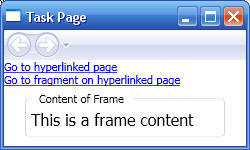
The following example, which presents basic navigation principles, will help illustrate some of the navigation concepts presented after the example:
<!-- App.xaml
-->
<Application
xmlns="http://schemas.microsoft.com/winfx/2006/xaml/presentation"
xmlns:x="http://schemas.microsoft.com/winfx/2006/xaml"
StartupUri="Page1.xaml">
</Application>
<!-- Page1.xaml
-->
<!-- Typically a browsable content
has a Page at its root. The content is added by setting
the <Page.Content> element.
<Page.Content> can have only one child element which will contain and compose the elements
and controls for your UI. Therefoer, an XAML page is simply a host for WPF content.
An XAML page can determine to some
extent how it appears in its host. For example, An XAML page can specify the title,
width, and height of the window that hosts it (see properties for Page element below)
Note that once a page is defined and
saved in .xaml, you can double click it to view it in Internet Explorer! However,
XAMLPad which comes with the Windows SDK is the preferred tool to view XAML files
-->
<Page
xmlns="http://schemas.microsoft.com/winfx/2006/xaml/presentation"
xmlns:x="http://schemas.microsoft.com/winfx/2006/xaml"
WindowTitle="Task Page"
WindowWidth="250"
WindowHeight="150" >
<!-- Page.Content is
optional and is often not specified!
-->
<Page.Content>
<!-- The one and only one child element of Page.Content. A StackPanel
allows you
to stack elements in a specified direction (default is vertical)-->
<StackPanel>
<!-- First item in stack panel is a text block which contains two
hyperlinks-->
<TextBlock>
<!-- Shows the simplest navigation - via a hyperlink
-->
<Hyperlink
NavigateUri="HyperlinkedPage.xaml">Go
to hyperlinked page</Hyperlink>
<LineBreak/>
<Hyperlink
NavigateUri="HyperlinkedPage.xaml#TextBlockFragment">Go to fragment on hyperlinked page</Hyperlink>
</TextBlock>
<!-- Second element is s Frame element. Note how the Source property
refers to a page-->
<Frame
Source="FramePage.xaml"></Frame>
</StackPanel>
</Page.Content>
</Page>
<!-- FramePage.xaml
-->
<!—This page is used as content in
Page1.xaml -->
<Page
xmlns="http://schemas.microsoft.com/winfx/2006/xaml/presentation"
WindowTitle="Page2"
>
<!-- The one and
only one child element of the implied Page.Content
-->
<GroupBox
Width="200"
Height="50">
<GroupBox.Header>
<Label>Content of Frame</Label>
</GroupBox.Header>
<TextBlock>
<TextBlock
FontSize="16">This is a
frame content</TextBlock>/
</TextBlock>
</GroupBox>
</Page>
<!-- HyperlinkedPage.xaml
-->
<Page
xmlns="http://schemas.microsoft.com/winfx/2006/xaml/presentation"
WindowTitle="Page2">
<!-- The one and
only one child element of the implied Page.Content
-->
<TextBlock>
<TextBlock
FontSize="20">Name:
Yazan</TextBlock>
<LineBreak/>
<!—- This is a fragment – a named element-->
<TextBlock
FontSize="20"
Name="TextBlockFragment">ID:
123</TextBlock>
</TextBlock>
</Page>
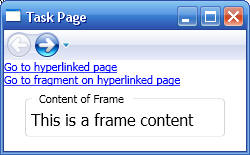
First of all, note that launching the application results in creating a WPF browser as the main frame. This browser hosts Page1.xaml which was specified in the StartupUri property of the <Application> object:
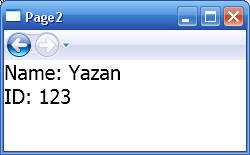
Clicking on “Go to hyperlinked page” link displays the contents of the HyperlinkedPage.xaml page:
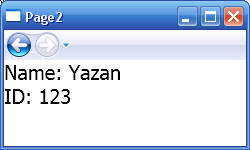
Navigating backwards by clicking the left-heading arrow:
Clicking on “Go to fragment on hyperlinked page”:
Page is the WPF equivalent of an HTML page. Recall that WPF supports both menu-driven and hyperlink-driven navigation in both stand-alone with browser-based applications. While the content cornerstone for menu-driven navigation is the Window class (you use menu options to create other windows/dialog boxes), the content cornerstone for hyperlink-driven navigation is the Page class.
From VS.NET you can add a Page to your WPF application using solution’s content menu and then Add | New Item … | Page (WPF). This generates the following skeletal code:
<Page
x:Class="Navigation.Page1"
xmlns="http://schemas.microsoft.com/winfx/2006/xaml/presentation"
xmlns:x="http://schemas.microsoft.com/winfx/2006/xaml"
Title="Page1"
>
<Grid>
</Grid>
</Page>
public partial class Page1 : System.Windows.Controls.Page
{
public Page1()
{
InitializeComponent();
}
}
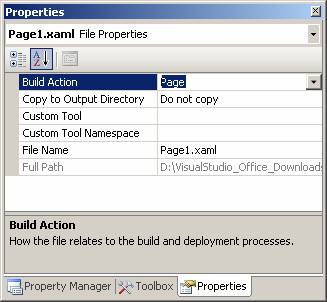
Note that the Page markup file is configured as a Page build item. As with Window, this is done so it can be loaded from a URI, which means you can configure Application.StartupUri to automatically load a page when an application starts:
<!--App.xaml (markup)-->
<Application ... StartupUri="Page1.xaml" />
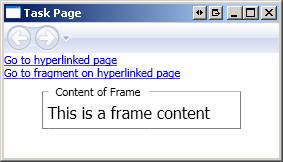
And because the Page class is not a window, and doesn't derive from Window, it can't host itself. Fortunately, the Application class is smart enough to detect when a particular page is set as the StartupUri. If so, Application creates a window in which to host the page:
WPF application model distinguishes between two application types: stand-alone and browser applications. A stand-alone application displays content through windows, dialogs, and messages boxes, while a browser application consists of its own pages that are hosted in a browser. Similarly, WPF application model distinguishes between two styles of navigation: menu-driven and hyperlink-driven. Menu-driven applications allow users to navigate content and functionality just as with any traditional Desktop application. Hyperlink-driven uses hyperlinks to deliver a navigation experience similar to Web applications.
While standalone applications typically support menu-driven navigation and browser applications typically support hyperlink-driven navigation, the WPF application model lets you mix and match elements of both application and navigation models. The combination you use should be based upon the type of experience that will most benefit your users. Once you've decided on the experience you want to deliver, you can use the WPF application model to build it.
Page navigation takes place within a container. However, Page does not have explicit knowledge about what container is hosting it. Page can determine the host using its Parent property, but Parent returns a reference to a DependencyObject, rather than a strongly typed reference to a particular host type. In fact, Page can have different types of hosts. Consequently, if you intend for your pages to be hosted by multiple types of hosts, you need a host-independent way of programmatically performing navigation. You can get a page's container by calling GetNavigationService method and passing it the root element of the page:
NaviagationService nav = NaviagationService.GetNavigationService( pageRoot );
NavigationService class is the basic navigation engine and includes sets of events, methods and properties to manage page and frame navigations, including navigation history, navigation content, etc.
A Page can be navigated from within three types of containers:
A common way to identify a target page is by its URI. The page's URI is the XAML's file path relative to the root project folder. For example a file named Page1.XAML in the Src folder which is a subdirectory of the project folder, with a code-behind file of Page1.xaml.cs has a URI of "Page1.xaml". The following sections discuss different ways of navigating to a new page:
Any nontrivial hyperlink-driven application will have more than one XAML page, and you'll need to give your users a way to navigate between these pages. WPF enables hyperlink-driven navigation with ... hyperlinks.
The simplest way to add hyperlink navigation to UI is to use <Hyperlink> elements and set its NavigateUri attribute to the target page's URI string. When using a frame, more than one page can be hosted. To navigate to a different page within the same frame, use the TargetName property of the <Hyperlink> element:
<Hyperlink NavigateUri="Page2.xaml" TargetName="MyFrame"/>
Sometimes you can't determine your navigation declaratively. For example, if you want to view a specific page you need to create an instance of that page and navigate to it. This can't be done declaratively. Instead, you need to handle it programmatically using the navigation container's Navigate method. This method supports two basic approaches to navigation
MyFrame.Navigate( new Uri("Page1.xaml", UriKink.RelativeOrAbsolute));
With this approach, the system automatically creates and initializes a new page object.
· You can also create a target page explicitly and pass the object to Navigate. One advantage of this approach is that you can implement a non-default constructor which can be used to initialize the page as appropriate: For example:
// Create and initialize page
Page1 nextPage = new Page1();
nextPage.InitializeComponent();
// Get navigation service and navigate to the page
nextPage. Approach 1
NaviagationService nav = NaviagationService.GetNavigationService( this );
nav.Navigate(nextPage);
// Get navigation service and navigate
to the page nextPage. Approach 2
this.NavigationService.Navigate(nextPage);
You can also load a new page by setting the container’s Source or Content properties. For example:
Page2 p2 = new Page2();
P2.InitializeComponent();
navWindows.Content = p2;
By default, when you navigate to a target page, the navigation container displays only the uppermost part of the page if you have a long page. To allow navigation to a section of the page that is well below the top of the page, you have to use fragment navigation. Fragment navigation allows you to navigate to a specific element within the page.
By default, a fragment in WPF is considered a named element
<TextBlock FontSize="20" Name="TextBlockFragment">ID: 123</TextBlock>
To navigate to a particular element on a page, you must assign a value to its
Name property. You then
construct a URI that that includes the value of the
Name attribute and conforms
to the following format:
URI#FragmentName
This approach can be used with a hyperlink or programmatically. For example:
MyFrame.Navigate( new Uri("HyperlinkedPage.xaml#TextBlockFragment ", UriKink.RelativeOrAbsolute));
Refreshing a page is essentially navigating to the same page so that it gets reloaded. Refresh will reset state of all controls in the page as well:
navWindow.Refresh();
Once you initiate navigation to a page, the following steps occur:
WCF is asynchronous and this means that Navigate method returns as soon as it initiates the navigation process. To monitor progress of the navigation process, WCF provides a number of navigation-related events. These events occur in the following order:
Conventional navigation is based on URI strings. You navigate to a specific URI and the system loads and renders the required page. Structured navigation on the other hand, is based on objects called "page functions" represented by the PageFunction type (inherits indirectly from Page). To navigate, you create the appropriate PageFunction object and navigate to it. Rather than loading and rendering the specific page, the system initializes the PageFunction object, which controls what happens next. This approach offers several advantages over URI strings:
When one page navigates to a second page, there are no mechanisms that allow the first page to detect when the user has finished with the second page. This is in part because Web applications naturally support a stateless navigation. Unstructured navigation makes it difficult to create task-based UI where one page calls another page to perform some task, and then possibly, get data returned from the called page.
For stand-alone applications, tasks are typically processed using dialog boxes that naturally support a structured call/return style of programming. Web developers have to create their own call/return infrastructure. It is possible to build a simple structured navigation implementation using Page and Hyperlink, with the help of application-scope variables Properties and NavigationService. Extending this simple implementation to support task removal and task history is non-trivial. The solution is to use WPF page functions which allow one page to call another, and then both can detect and handle when the second page returns.
PageFunction is the cornerstone of structured navigation in WPF. Essentially, page functions enable a style of navigation that is analogous to functions in procedural languages, which typically involves the following:
PageFunction essentially allows you to replicate this model to build a task using structured navigation. See the Structured Navigation example for full details.
Pages
in structured navigation are organized in a navigation topology.
This structure defines how navigation takes place between the page that make up
the program. There are two approaches to constructing a navigation topology:
In practice, you may implement a fixed topology for some parts of the program, and an adaptive topology for other parts.
The following code illustrates fundamentals of navigation:
<!-- App.xaml -->
<!-- Unlike Navigation1 which consisted
only of loose XAML pages, an XAML Browser Application(XBAPs) is a compiled .NET Framework 3.0
that runs from within IE.
Note here the use of StartupUri to
specify which page should be shown when the application
is launched.-->
<Application
xmlns="http://schemas.microsoft.com/winfx/2006/xaml/presentation"
xmlns:x="http://schemas.microsoft.com/winfx/2006/xaml"
StartupUri="MainWindow.xaml">
</Application>
<! -- MainWindow.xaml -->
<!-- The represents the main window of the application -->
<Window
x:Class="Navigation.MainWindow"
xmlns="http://schemas.microsoft.com/winfx/2006/xaml/presentation"
xmlns:x="http://schemas.microsoft.com/winfx/2006/xaml"
Title="NavigationService Sample"
Height="600"
Width="500"
Loaded="MainWindow_Loaded">
<!-- The one and
only child element
-->
<DockPanel>
<DockPanel
DockPanel.Dock="Top">
<Label
DockPanel.Dock="Left">Address:</Label>
<Button
DockPanel.Dock="Right"
Name="goButton"
Click="goButton_Click">Go</Button>
<TextBox
Name="addressTextBox">HyperlinkedPage.xaml</TextBox>
</DockPanel>
<!-- This list box collects naviagation events
-->
<ListBox
DockPanel.Dock="Bottom"
Name="navigatingEventsListBox"
Height="200"></ListBox>
<Frame
Name="PageFrame"
NavigationUIVisibility="Hidden"
Source="HomePage.xaml"></Frame>
</DockPanel>
</Window>
// MainWindow.cs
// Code-behind for the main window
using System;
using System.Windows;
using System.Windows.Controls;
using System.Windows.Navigation;
namespace Navigation
{
public
partial class
MainWindow : Window
{
public MainWindow()
{
InitializeComponent();
}
NavigationService NavigationService
{
// Retrieve the navigation service, provided by the
frame,
// for the frame content.
get { return
NavigationService.GetNavigationService((DependencyObject)this.PageFrame.Content);
}
}
void MainWindow_Loaded(object
sender, RoutedEventArgs e)
{
/* A Page may not know what its host will be at run
time and therefore cannot integrate
* directly with its
host's navigation members. Instead, a page uses a navigation service
* which supports browser-style navigation and is encapsulated by the
NaviagationService
* class You cannot create a NavigationService object, instead, host types such
as
* NavigationWindow, Frame, or a browser create their own NavigationService that
you can
* access from the page's NavigationService property */
// Hook up all navigation events
this.NavigationService.Navigating
+= Page_Navigating;
this.NavigationService.Navigated
+= Page_Navigated;
this.NavigationService.NavigationProgress
+= Page_NavigationProgress;
this.NavigationService.NavigationStopped
+= Page_NavigationStopped;
this.NavigationService.NavigationFailed
+= Page_NavigationFailed;
this.NavigationService.LoadCompleted
+= Page_LoadCompleted;
}
void goButton_Click(object
sender, RoutedEventArgs e)
{
// Navigate to the window identified by the user
this.navigatingEventsListBox.Items.Clear();
Uri uri = new
Uri(this.addressTextBox.Text,
UriKind.RelativeOrAbsolute);
this.NavigationService.Navigate(uri);
}
#region
Navigation Events
void Page_Navigating(object
sender, NavigatingCancelEventArgs e)
{
Log("Navigating: [" + e.Uri +
"]");
}
void Page_Navigated(object
sender, NavigationEventArgs e)
{
Log("Navigated: [" + e.Uri +
"]");
}
void Page_NavigationProgress(object
sender, NavigationProgressEventArgs e)
{
Log("Progress: " +
e.BytesRead.ToString() + " of " +
e.MaxBytes.ToString() + " [" +
e.Uri + "]");
}
void Page_NavigationStopped(object
sender, NavigationEventArgs e)
{
Log("Navigation Stopped: [" + e.Uri
+ "]");
}
void Page_NavigationFailed(object
sender, NavigationFailedEventArgs e)
{
Log("Navigation Failed: [" + e.Uri +
" - " + e.Exception.Message +
"]");
}
void Page_LoadCompleted(object
sender, NavigationEventArgs e)
{
Log("Load Completed: [" + e.Uri +
"]");
}
#endregion
#region Helper
void Log(string item)
{
this.navigatingEventsListBox.Items.Add(item);
this.navigatingEventsListBox.SelectedIndex =
this.navigatingEventsListBox.Items.Count - 1;
this.navigatingEventsListBox.Focus();
}
#endregion
}
}
<!-- HomePage.xaml
-->
<!-- A Page that is navigated to using the Navigate command. User enters the
name of this page in the text box -->
<Page
xmlns="http://schemas.microsoft.com/winfx/2006/xaml/presentation" Title="HomePage">
<Grid>
<TextBlock>Home Page</TextBlock>
</Grid>
</Page>
<!--
HyperLinkedPage.xaml-->
<!-- A Page that is navigated to using a HyperLink
-->
<Page
xmlns="http://schemas.microsoft.com/winfx/2006/xaml/presentation"
WindowTitle="Page2"
>
<!-- The one and
only one chile element of the implied Page.Content
-->
<TextBlock>
<TextBlock
FontSize="20">Name:
Yazan</TextBlock>
<LineBreak/>
<TextBlock
FontSize="20"
Name="TextBlockFragment">ID:
123</TextBlock>
</TextBlock>
</Page>
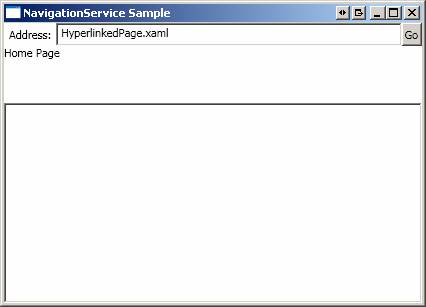
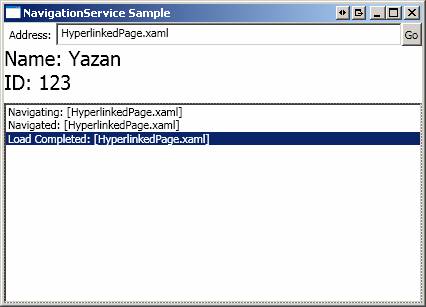
Clicking on Go. Navigates to the HyperLinkedPage page:
Clicking on Go. Navigates to the homepage page:
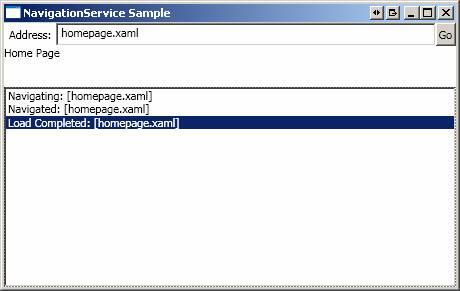
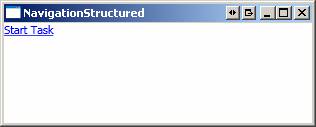
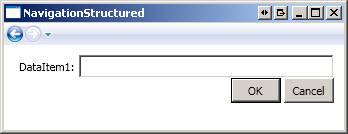
Previous navigation shown so far in unstructured: The following example shows how to use the PageFunction function to implement structured navigation.
<!-- App.xaml -->
<Application
x:Class="NavigationStructured.App
xmlns="http://schemas.microsoft.com/winfx/2006/xaml/presentation"
xmlns:x="http://schemas.microsoft.com/winfx/2006/xaml"
StartupUri="Window1.xaml"
>
<Application.Resources>
</Application.Resources>
</Application>
<!-- Window1.xaml -->
<Window
x:Class="NavigationStructured.Window1"
xmlns="http://schemas.microsoft.com/winfx/2006/xaml/presentation"
xmlns:x="http://schemas.microsoft.com/winfx/2006/xaml"
Title="NavigationStructured"
Height="300"
Width="300"
>
<Grid>
<Frame
Source="CallingPage.xaml"></Frame>
</Grid>
</Window>
<!-- CallingPage.xaml -->
<Page
x:Class="NavigationStructured.CallingPage"
xmlns="http://schemas.microsoft.com/winfx/2006/xaml/presentation"
xmlns:x="http://schemas.microsoft.com/winfx/2006/xaml"
Title="CallingPage"
>
<Hyperlink
NavigateUri="TaskPage.xaml"
Click="Hyperlink_StartTaksHandler">Start Task</Hyperlink>
</Page>
// CallingPage.cs
public
partial class
CallingPage : System.Windows.Controls.Page
{
public CallingPage()
{
InitializeComponent();
}
private void Hyperlink_StartTaksHandler(object sender, RoutedEventArgs
args)
{
// Instantiate task page function
TaskPage task = new
TaskPage("TestData");
// Add a handled to PageFunction's Return event which
is called by the task page
// when it returns data to its caller
task.Return += new ReturnEventHandler<string>(task_Return);
// Calling a task that is composed from page
functions is similar to calling a task
// that is composed from pages; just navigate to it
using the NavigationService
this.NavigationService.Navigate(task);
}
void task_Return(object
sender, ReturnEventArgs<string> e)
{
Console.WriteLine("TaskPage
returned: " + e.Result);
}
}
<!-- TaskPage.xaml -->
<!--
This file was added using the 'Page
Function (WPF)' template from Add -> New Item ... The declaration of <PageFunction>
element is similar to <Page>. However, because <PageFunction> element represents
a generic class, <PageFunction> element requries a
type identifier as well, represented by
the x:TypeArguments property, to define the
type of the value that the PageFunction
will return. In this case, PageFunction is
defined to return a 'String'.
Note that you could also use a custom
type from either the local assembly or a referenced
assembly. For example:
<PageFunction ...
xmlns:local="clr-namespace:LocalNamespace"
x:TypeArguments="local:CustomType">
...
</PageFunction>
-->
<PageFunction
xmlns="http://schemas.microsoft.com/winfx/2006/xaml/presentation"
xmlns:x="http://schemas.microsoft.com/winfx/2006/xaml"
xmlns:sys="clr-namespace:System;assembly=mscorlib"
x:Class="NavigationStructured.TaskPage"
x:TypeArguments="sys:String"
Title="TaskPage">
<Grid
Margin="10">
<Grid.ColumnDefinitions>
<ColumnDefinition
Width="Auto" />
<ColumnDefinition />
</Grid.ColumnDefinitions>
<Grid.RowDefinitions>
<RowDefinition
Height="Auto" />
<RowDefinition />
</Grid.RowDefinitions>
<!-- Task data
-->
<Label
Grid.Column="0"
Grid.Row="0">DataItem1:</Label>
<TextBox
Grid.Column="1"
Grid.Row="0"
Name="dataItem1TextBox"></TextBox>
<!-- Accept/Cancel buttons
-->
<TextBlock
Grid.Column="1"
Grid.Row="1"
HorizontalAlignment="Right">
<Button
Name="okButton"
Click="okButton_Click"
IsDefault="True"
Width="50"
Height="25">OK</Button>
<Button
Name="cancelButton"
Click="cancelButton_Click"
IsCancel="True"
Width="50"
Height="25">Cancel</Button>
</TextBlock>
</Grid>
</PageFunction>
// TaskPage.cs
public
partial class
TaskPage : System.Windows.Navigation.PageFunction<String>#
{
private string
_strData = String.Empty;
public TaskPage(string
strInitialData)
{
InitializeComponent();
// Save data passed from the calling code
_strData = strInitialData;
}
// Data of any kind is returned from a page function by
calling the OnReturn method
// OnReturn is a protected virtual method that you call to
return your data to the
// calling page. Data is packaged in an instance of the
generic ReturnEventArgs type
void okButton_Click(object
sender, RoutedEventArgs e)
{
// Accept task when Ok button is clicked. The generic
class ReturnEventArgs
// takes a string type identifier because
<PageFunction> element specifies 'string'
// for its x:TypeArguments attribute
OnReturn(new ReturnEventArgs<string>(this.dataItem1TextBox.Text));
}
// Data of any kind is returned from a page function by
calling the OnReturn method
void cancelButton_Click(object
sender, RoutedEventArgs e)
{
// Cancel task
OnReturn(null);
}
}