A DataSet is an in-memory representation of data that provides a consistent relational programming model regardless of the data source. The structure of a DataSet object is similar to that of a relational database - it exposes a hierarchical object model of tables, columns, and rows. In addition, it contains relationships and constraints for those tables.
You interact with a DataSet object through standard programming constructs such as properties and collections. For example:
A DataSet is a relational view of data and this data can be easily represented in XML. The relationship between DataSets and XML allows you to take advantage of the following features:
DataSets can be either typed or untyped. A typed DataSet is a class that inherits from DataSet class and then uses information in an XML Schema file to generate a new class. Information from the schema (tables, columns, rows, and so on) is compiled into the DataSet-derived class as a set of first class objects and properties. An untyped data set in contrast has no built-in schema - tables, columns and so on are exposed as collections.
The following illustrates the difference between typed and untyped DataSet objects. Code assumes that the first table is called Customers and that we want to access the CustomerName field in the first row:
// Untyped data set
string strName = dsData.Tables["Customers"].Rows[0]["CustomerName"];
// Typed data set. Note that Tables
collection is not used
string strName = dsData.Customers[0].CustomerName;
Because a typed data set inherits from DataSet, the derived class assumes all the properties and methods of the base class. The inheritance is public (hence it is a 'is a') inheritance and this means that the derived class can be used anywhere a DataSet object is expected.
References by name to tables and relations in a data set are case-sensitive. Two or more tables or relations can exist in a data set that have the same name but differ only in case. Therefore, tables table1 and Table1 each refer to a different DataTable object. Note that the case-sensitivity rule does not apply if only table exists in a data set. That is, if a data set has only one DataTable called Table1, then you can reference it using table1 or any other case-combination - TABLE1, TAble1, and so on.
Note: Unlike data sets, XML document are case-sensitive, and therefore, names of data elements defined in the XML schemas are case sensitive. Be aware that in XML schemas, an element called Customers is different from an element called customers. Obviously, this could result in name collisions if this schema were to be imported into a data set.
DataSet.CaseSensitive property applies to actual data in the data set and it allows you to control case sensitivity for filtering, searching, sorting, and enforcing constraints on the actual data. References by name to tables or relations in a data set are not affected by DataSet.CaseSensitive.
A DataSet can be populated in a couple of ways:
The DataSet object is independent of any data source. Data in a DataSet is retrieved from a data source, and changes are persisted back to the data source using a DataAdapter. This means that when a DataAdapter fills a DataTable in a DataSet with values from a data source, the resulting data types of the columns in the DataTable are .NET Framework data types rather than data types specific to the data source.
The .NET Framework data type is inferred from the data type returned from the data source via the data adapter.
Because a DataSet is fully disconnected, there is no concept of a current record as in ADO Recordsets. Instead, all records are available. This also implies that there are no methods to move from one record to another, i.e., there are no MoveFirst, MoveNext, and so on.
To access data in a DataSet object, access the required table and then use the table's Rows collection to access individual rows via the collection's index. Each row will be exposed as a DataRow object and individual columns can be accessed via the Items property (an indexer in C#).
An implication of having multiple data tables in a data set is that a data adapter does not typically execute SQL or stored procedures that join tables. Instead, information from the related tables is read separately into the data set by different data adapters. A DataRelation object can then be used to manage relations/constraints between the related tables (for example, cascading updates)..
For example, assume your database contains two related tables - Customers and Orders. Rather than using a data adapter to execute SQL that joins these two tables into a single one, you use two data adapters, one to populate a Customers data table and another adapter to populate an Orders data table. Once data has been retrieved, you define a DataRelation object that establishes a parent-child relationship between these two data tables. Methods and properties of the DataRelation class will allow you to work with related records from both data tables. More importantly, you can manage and update contents of each table separately in a way which would not have been possible have you merged the output into a single table.
If you have multiple tables in a DataSet object, information in those tables might be related. The DataSet object has no inherent knowledge of such relationships. Therefore, to work with data in related tables, you have to create a DataRelation object that describes a relation between two tables by specifying keys used to link the tables together. A DataRelation object can be used to programmatically fetch the child records of a parent record, and a parent record from a child record.
Note that adding a DataRelation to a DataSet adds a UniqueConstraint to the parent table and a ForeignKeyConstaint to the child table. This assumes that both tables are related by a Primary Key-Foreign Key relationship. If there was no such relationship, an exception will be thrown. In situations where a child column may contain values that the parent column does not contain, set the createConstraints flag to false when adding a DataRelation object.
Also note that a DataRelation object has a Nested property which when set to true can cause the child rows to be nested with the associated row when written as XML elements using WriteXML method.
The DataRelation object can perform two functions:
Constraints are rules that are applied when rows are inserted, updated, and deleted in a table. You can define two types of constraints in a data set:
Data sets support constraints as a way to ensure data integrity. In a data set, foreign-key constraints are associated with tables and unique constraints are associated with columns. In a DataSet object, these constraints are implemented as objects of type ForeignKeyConstraint and UniqueConstraint, respectively. These objects can then be added to the Constraints collection of a DataTable. A unique constraint on a column can also be implemented by setting the Unique property on the DataColumn to true, rather than creating a UniqueConstraint for that column and then adding it to the DataTable's Constraints collection.
The EnableConstraints property on a DataSet allows you to turn constraints checking on and off as required. By default, this property is set to true. This property is useful when you need to temporarily turn constraints checking off.
To write changes from a DataSet object back to its data source, you call the DataAdapter.Update method, Briefly, the Update method examines each DataRow object of each data table to determine the value of each row's RowState property (this value indicates whether the row has been inserted, deleted, updated or remains unchanged). The Update method will then update the data source from the data set by calling the appropriate command object (DeleteCommand, InserteCommnad, ... ) based on the row's RowState value. Updating a DataSet against a data source is covered fully in Updating DataSets section.
With Visual Studio.NET, you can create a DataSet object in a couple of ways:
Creating a DataSet object programmatically is very easy. The basic steps are:
// Create and initialize a data
adapter
DataAdapter da = new DataAdapter("select * from T", conn );
// Create and fill a DataSet
DataSet ds = new DataSet();
da.Fill( ds, "MyDataSetName" );
In general, use the Component Designer when you want Visual Studio.NET to generate a schema and a typed data set for you. The Component Designer allows you to indirectly create data sets by dragging and dropping a DataAdapter component into the Designer and then configuring the data adapter's properties such as the SelectCommand and TableMappings. Note that the TableMappings property allows you to specify which columns are included in the data set and what their names should be.
After configuring the adapter, you can generate a data set from it. Note that you must generate the data set if you modify the data adapter. This is because when using the Component Designer you have no direct control over the schema
Use the XML Designer when you you want to control precisely how the schema is defined or if you cannot generate the schema from a data source. You can use the XML Designer to create a schema in two ways:
In both cases, you can then create an instance of a typed DataSet class based on the schema that you created. However, working with the XML Designer has its own set of disadvantages:
A DataTable in a DataSet can contain columns in which the values are calculated rather than read from a data store. For example, in a Products table, it might make sense to add an extra column called SalePrice whose values are calculated by multiplying a product's price by a sale percentage to be determined at runtime.
The syntax of the expression consists of standard arithmetic, Boolean expressions, string operators and literal values. You can reference a data value using its column name (as you would in a SQL statement) and include aggregate functions like Count, Sum and so on. You can also refer to columns in a child table using the reserved word .Child. For example, to return the average value of the Price column in all related child records, you would use: Avg(Child.Price).
DataAdapter.Fill method fills a DataSet with table columns and rows from a data source and does not add schema information to the DataSet by default. To populate a DataSet with existing primary key constraint information from a data source, either:
This will ensure that primary key constraints in the data source are reflected in the DataSet object, however, this requires extra processing at the data source to determine primary key information so an overhead is involved. Foreign key constraints are not added and will need to be created explicitly. See Adding Constraints to a Table.
MyDataAdapter.MissingSchemaAction =
MissingSchemaAction.AddWithKey;
MyDataAdapter.Fill( myDataSet, "Orders" );
Adding schema information to a DataSet object before filling it with data ensures that primary key constraints are included with the DataTable objects in the DataSet. As a result, when additional calls to Fill the DataSet object are made, primary key information is used to match new rows from the data source with current rows in each DataTable object, and current data in the DataTables is overwritten with data from the data source. Without schema information, new rows from the data source would be appended to the DataSet object resulting in duplicate rows.
The SQL Server .NET Data Provider and the OLE DB .NET Data Provider both allow you to retrieve schema information from a database:
// Set up data adapter to retrieve
schema information
string strSQL = "select * from INFORMATION_SCHEMA.TABLES where TABLE_TYPE='BASE_TABLE'";
SqlDataAdapter da = new SqlDataAdapter( strSQL, myConn );
// Now get schema information
DataSet dsSchema = new DataSet();
da.Fill( dsSchema );
After a DataSet object has been populated with data and potentially bound to a data-bound control like the DataGrid, the user may change the value of some cells, may insert new rows, or delete rows as appropriate. Via the data-binding architecture, all such changes will be reflected in the underlying data source. What is important here is that when data is modified in a DataSet object, the DataSet object will track those changes per row. You can then send DataSet object changes to other data sources, and potentially to the original data source. Throughout this update process, there will be several raised events whose handlers can be used by the programmer to apply data validation, concurrency validation and application logic.
This section discusses the following main topics:
Because the DataSet object is essentially an in-memory cache of data, the process modifying data in the DataSet object is separate from the process of writing DataSet changes back to the original data source. The following sections describe the underlying architecture and mechanisms used to update a DataSet against its data source.
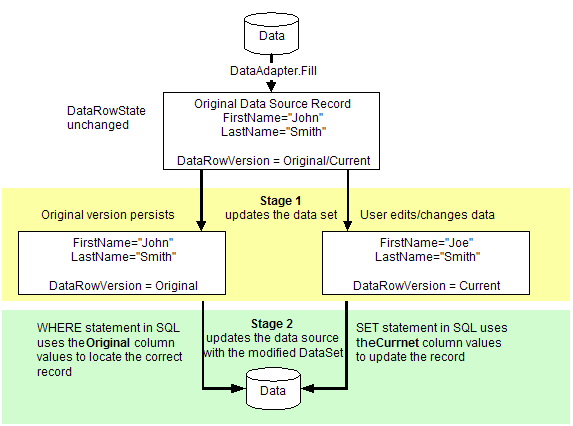
Updating a data source via a data set is a two-step process: The first step is to update the DataSet object with new information (new/changed/deleted records), and the second step is to send these changes from the DataSet object back to the data source. This means that the process of updating a DataSet object with new changes does not automatically write these changes to the underlying data source. The second step must be explicitly performed by calling the Update method of the same DataAdapter that was used to populate the DataSet object (you could also use a different data adapter - if you wanted for example to move data to a different data source.)
The following diagram illustrates this two-stage process:
Structurally, a DataSet object makes data available as a set of collections. A DataSet object contains a collection of Tables, and each table contains a collection of Rows, and each row contains a collection of items (of type Object) used to access individual cells. If you intend on updating the underlying data source object, these collections must be modified using methods specifically for data set modification.
For example, to remove a record from a DataTable, you could use the RemoveAt() method of the Rows collection. This way of removing a record is only acceptable if you intend on using the DataSet object as a structured store for data and are not concerned about transmitting these changes back to a data source. However, if you intend on sending these changes back to the data source or to some other application, you need to maintain change information (metadata) about each update, delete, or insert. Later, when you update the data source with the modified DataSet object, the process will have the information it needs to locate and update the proper records. For example, if you delete a record in the DataSet object, information has to be maintained about the deleted row so that when the DeleteCommand of the data adapter is invoked, there will be enough historic information to locate the original record in the data source so that it can be deleted.
You can update the contents of a DataSet object by copying the contents of a source DataSet object into the calling (target) DataSet object. This process is known as merging. When you merge DataSets, new records in the source data set are added to the target data set. Additionally, extra columns in the source data set are also added to the target data set. Merging is useful when you want to integrate data from multiple data sets into one data set.
When merging data sets using the DataSet.Merge() method, you can use the optional preserveChanges argument to retain existing modifications in the target data set. Because data sets maintain multiple versions of the same record, it is important to keep in mind that more than one version of the records is being merged. The following illustrates a record in two data sets that will be merged:
| DataRowVersion | Target DataSet | Source DataSet |
| Original | John Smith | John J. Smith |
| Current | Joe Smith | John J. Smith |
Calling dsTarget.Merge( dsSource, false) method results in the following:
| DataRowVersion | Target DataSet | Source DataSet |
| Original | John J. Smith | John J. Smith |
| Current | John J. Smith | John J. Smith |
But calling dsTarget.Merge( dsSource, true) method results in the following:
| DataRowVersion | Target DataSet | Source DataSet |
| Original | John J. Smith | John J. Smith |
| Current | Joe Smith | John J. Smith |
However, note that if RejectChanges method was called on the target data set when Merge was called with preserverChanges = true, the target data set will revert to data from source data set
If the table receiving new data and schema from a merge has a primary key, new rows form the incoming data are matched with existing rows that have the same Original primary key values as the incoming data. If the columns from the incoming source match those in the target data set, the data in the existing row in modified. Columns that do not match the target schema are either ignored or added based on the MissingSchemaAction parameter.
You make changes to an exiting data row by adding or updating data in individual columns. If the DataSet contains constraints in the form of foreign keys or non-nullable constraints, then it is possible that updating a column may cause it to be in a temporary state of error. To prevent premature constraint violations, you can temporarily suspend update constraints. And after you have completed an update, you can re-enable constraint checking which also enables update events and raises them.
Note that in Windows Forms, the data-binding architecture built-into a data grid suspends contraint checking until focus moves out of a row. You do not have to explicitly call BeginEdit, EndEdit or CancelEdit.
When working with auto-incrementing columns at a data source and auto-incrementing columns at a data table, it is recommended that you either:
Information about changes to a DataSet are maintained in two ways:
These two pieces of information can be used to determine what changes have been applied to a data set and how to send updated to the data source.
When updating a data set against a data source, you do not need to update every record in the data set. For example, a DataGrid may be displaying 500 rows but the user deletes only one row and changes another. So why update 500 rows and increase the likelihood of update and concurrency errors when you can update only the affected rows? The DataSet.GetChanges and DataTable.GetChanges methods retrieve only the rows have been modified.
DataSet.GetChanges gets you a new DataSet object with only the changed records. Likewise, DataTable.GetChanges gets you a new DataTable object with only the changed records. You can further filter these subsets by passing the desired DataRowState enumeration to either of the GetChanges methods. For example, you may want to get only newly-added records, records marked for deletion, detached records, or modifier records.
Getting a subset of changed records is particularly useful when you want to send records to another component, perhaps a data access layer component. Instead of sending the entire data set, you reduce the overhead by sending only the records that the component needs. The component then processes these records as efficiently as possible.
As changes are made to a data set, the state of each changed row is updated. This new state is maintained in the row's RowState property. The original and current versions of the row are established and maintained and can be retrieved via the RowVersion property.
These changes are pending and not permanent. They can be rejected via the RejectChanges method or made permanent via the AcceptChanges method. The RejectChanges method undoes the effect of all changes by copying the Original version back to the Current version of records and setting the RowState of each record back to Unchanged. On the other hand, AcceptChanges is used to commit your changes to the data set (and not the data source), Typically, you would call AcceptChanges at the following times:
The AcceptChanges method accomplishes the following:
The AcceptChanges is available at three levels. Calling DataRow.AcceptChanges commits changes on the specific row. Calling DataTable.AcceptChanges commits changes on the entire table. And calling DataSet.AcceptChanges commits changes on the entire data set.
Changes to a data set often have to be validated to ensure that they meet the application's requirement. This data validation can be performed in several ways:
Because each record in a data set is represented by a DataRow object, changes to a data set are accomplished by updating/inserting/deleting new rows. Recall that if you want to send your changes back to a data source, the data set has to maintain state or metadata information about what has changed. Therefore, all modifications to a data set should be done through specific methods on the data set in order to maintain metadata information.
To edit an exiting record in a DataSet object, you must access a particular column of data in a particular row.
To update an existing record in either typed or untyped DataSet objects:
dsResults.Tables["Customers"].Rows[3][0]
= "John
Smith"; //
OR
dsResults.Tables["Customers"].Rows[3]["CustomerName"] =
"John Smith";
To update an existing record in a typed DataSet objects:
dsResults.Customers.[4].CustomerName = "John Smith"
The above code assumes that the first table in the DataSet object is called Customers. The code above accesses the fourth row and updates the value of the CustomerName column to "John Smith".
To add a new row to a DataSet object, a new DataRow must be created and added to the DataRowCollection of the associated DataTable object.
// Get the customers table
DataTable dtCustomers = ds.Tables[0];
// Add a new row the customers table
DataRow row = dtCustomers.NewRow();
// Assign new values within the new row
row["Name"] = "John Smith";
row["Age"] = 33;
// Now insert this new record in the data table
dtCustomers.Rows.Add( row );
To delete a row from a data set, call the row's Delete() methods. This method will ensure that metadata information is maintained in the DataSet in order to properly apply data set updates. To delete a row from a data table:
dsCustomers.Tables[0].Rows[10].Delete();
Note that the above method does not physically remove the record. It simply marks it for deletion. Also note that if you get the Count property of the DataRowCollection, the resulting count will include records that were marked for deletion. To get an accurate count of records not marked for deletion, you can either loop through the DataRowCollection collection and examine the RowState property, or you can create a DataView based on a DataTable or DataSet that filters rows based on their state, and then get then count from the resulting DataView.
When records are updated, the parent DataTable fires events that you can respond to as changes are occurring and after changes are made. DataTable objects raise the following events:
The XChanging events are fired during the update process and you often use these events to perform some validations or other types of processing. Because the updates are in progress during these events, you cancel the updates by throwing an exception which prevents the change from being completed.
The XChanged events are notification events that are fired when the corresponding update process has completed successfully. These actions when you want to take some action based on a successful update.
You can violate a constraint while updating if the data set has some constraints such as a foreign key constraint of a unique constraint on some other field. A record could be in a temporary state of error if you finish updating a record but before you get to the other record. This could happen if the columns in your row do not allow null values. As you create a new row, all columns will be initially empty (assuming no default value was specified). As soon as you start writing in one column, there will always be a null value in the remaining unedited columns. So there must be a way to temporarily suspend constraints.
To suspend update constraints:
For example:
ds.Tables[0].Rows[0].BeginEdit();
// Begin editing on the first row of the first table
ds.Tables[0].Rows[0][0] = "10";
// Change the value of the first column
ds.Tables[0].Rows[0].EndEdit();
// End editing on that row
Some typical examples of when you need to merge data sets:
For example:
dsTarget.Merge( dsSource, true );
As you make changes to a data set by inserting/deleting/updating records, the data set maintains original and current versions of each new or changed record. In addition, each record's RowState property is updated accordingly to indicate whether records are in their original state or if they have been updated/inserted/deleted. After you have processed all rows, you have to call DataSet.AcceptChanges method to commit all changes in the data set, or DataTable.AcceptChanges to commit all changes in the data table.
dsCustomers.AcceptChanges; // Commits changes in the entire data set including all its data tables
Recall that a DataSet object maintains multiple versions of a DataRow in order to locate the original records in a data source. Before performing an update, you may want to identify all rows that have changed. Changes are tracked in each DataRow in two ways:
You can determine if changes have been applied to a data set and what type of changes by calling the DataSet.HasChanges method:
// Approach 1: Determine if any
changes have been applied to a DataSet object
if ( dsResults.HasChanges() )
{
/* Process changed rows */
}
// Approach 2: Determine if a specific
change has been applied to a DataSet object
if ( dsResults.HasChanges(DataRowState.Added) )
{
/* Process changed rows */
}
Once you have determined that a change has been applied to a DataSet object, you can then retrieve all DataRow objects that have been changed. Note that if you need to retrieve and/or process all changed rows, you must do this before calling AcceptChanges as this method commits all changes to the DataSet object and resets the state of all changed DataRow objects to unchanged. The way to retrieve changes is to call GetChanges method which returns a new DataSet or DataTable object that contains only the records that have been changed:
// Approach 1: Retrieve all changed
records
DataSet dsChangedResults = dsCurrent.GetChanges();
// Approach 2: Retrieve all deleted
records
DataSet dsChangedResults = dsCurrent.GetChanges( DataRowState.Deleted );
The GetChanges() method can either retrieve a DataSet or DataTable of changed records. You can also apply a DataRowState enumeration to the GetChanges method to get a particular kind of change. There is another way to get a record with a particular change without having to get a separate DataSet or DataTable object. Normally, when you get a column value, you get by default the current version. In fact, there is an overload that allows you to specify which column version you would like to retrieve. The following retrieves the original version of a record
string strName = dsCustomers.Tables[0].Rows[0]["Column1", DataRowVersion.Original];
If you decided to compare the original vs. the current version using the above code, then this code is better placed in the ColumnChanging or ColumnChanged events during which the changed column is identified.
During the update process you need to handle any errors resulting from entering or changing invalid values. If you do not use the RowUpdated or ColumnUpdated event handlers to catch errors during the update process, then you have to iterate throw all rows and identify those with errors using the HasErrors method:
foreach( DataRow dr in dtMyTable )
{
if( dr.HasErrors())
{
/* This row has
an error. Process the error here */
}
}
Data sets raise various events as users change columns and rows. Event handlers are often used to manage the update process and validate any new changes. Note that building validation into the data set is the most logical and appropriate place because the data set is part of the application. Validation in a data set can be accomplished by:
There are several events that get raised by a DataTable when a change is occurring in a row:
Therefore, each change to a column raises four events in the following order:
If more than one column is being changed in the same row, then all four events will be raised as each column is changed. Note that a DataRow's BeginEdit and EndEdit are used to turn off RowChanging and RowChanged after each column edit.
Which event to handle depends on the granularity of the validation logic. For example, if it is important to catch the error immediately when a column is changed, build validation using the ColumnChanging event. Otherwise, use the RowChanging event which might result in several errors at once. Additionally, if your data is structured in such a way that the value of one column is validated based on the contents of another column, then you should perform your validation using the RowChanging event.
To validate data when a column is changing, create an event handler for the ColumnChanging event and perform required processing:
public void ColumnChanging_Handler( object sender,
DataColumnChangeEventArgs e )
{
// Get original and proposed values
string strOriginal = (string)e.Row[e.Column];
string strProposed = e.ProposedValue;
// To get information about the
changing column examine the Column
// property of the event handler argument
string strColName =
e.Column.ColumnName;
System.Type tpColType = e.Column.DataType;
// To reject any changes, examine the
proposed value, and throw an exception when application
// requirements are not met
if (strProposed != strSomeValue )
throw new Exception( ... );
}
To validate data when a row is changing, create an event handler for the RowChanging event and perform required processing:
public void RowChanging_Handler( object sender,
DataRowChangeEventArgs e )
{
// Get changes to the row by extracting
individual columns from the Proposed
// version of the changing Row
string strNameProposed = (string)e.Row["Name",
DataRowVersion.Proposed];
string strNameOriginal = (string)e.Row["Name",
DataRowVersion.Original];
// Perform validation. To reject
changes, throw an exception
...
}
This section deals with some important DataSet fundamentals regarding data source updating as well as how to perform an update and deal with any arising issues. This subsection has three parts:
After changes have been made to a DataSet object, you can transmit changes back to the data source by calling DataSet.Update method. This method internally loops through each record in a DataTable object, examines the row state of each row to determine what type of update is required (update, insert or delete) if any, and then executes the appropriate SQL command object (UpdateCommand, InsertCommand, DeleteCommand).
As an illustration, consider the following table:
| ProductID | Description | Price | (RowState) |
| 100 | ..NET Framework and C# | 39.99 | Unchanged |
| 105 | Introduction to .NET | 49.99 | Unchanged |
The application then changes the Price of ProductID 105 to some other value. As a result, the RowState property for that row changes from Unchanged to Modified.
| ProductID | Description | Price | (RowState) |
| 100 | ..NET Framework and C# | 39.99 | Unchanged |
| 105 | Introduction to .NET | 39.99 | Modified |
The application now calls the Update method to update the modified data set against the database. The method inspects the RowState property of each row: For the first row, data has not changed, so the row is skipped. For the second row, the method invokes the UpdateCommand object in order to invoke the Update SQL statement assigned to that command object. Note that the syntax of the SQL Update statement depends on the dialect of SQL supported by the underlying data source. But in general, the transmitted SQL has the following properties:
In many cases, the order in which changes made through the data set are sent to the data source is very important. For example, if the primary key value for an existing row has been changed and a new row has been added with a new primary key value then it is important to process the update command before the insert command.
To control the order in which changes are transmitted back to the data source, use the DataTable.Select method to return rows with a particular RowState value (i.e., inserted, deleted, etc.) and then pass the output of the DataTable.Select to DataAdapter.Update method. In this way, the DataAdapter.Update processes each kind of change in a controlled and user-specified manner. For example, the following code processed deleted, followed by updated, followed by inserts:
MyDataAdapter.Update( MyDataTable.Select( null, null,
DataViewRowState.Deleted ) );
MyDataAdapter.Update( MyDataTable.Select( null, null,
DataViewRowState.ModifiedCurrent ) );
MyDataAdapter.Update( MyDataTable.Select( null, null, DataViewRowState.Added )
);
When the data adapter's Update method executes an UPDATE statement via the UpdateCommand object, it gets required parameter values from the UpdateCommand.Parameters collection. Note the following typical UPDATE statement:
UPDATE MyTable
SET Name = "Yazan"
WHERE CustomerID = 1
The parameters for the SET clause are obtained from the current version, and parameters for the WHERE clause are obtained from the original version.
Note: For OleDbDataAdapter and OdbcDataAdapter, parameters are position-sensitive and are hence identified by position. For SqlDataAdapter and OracleDataAdapter, parameters are resolved by name rather than by position.
Note the following points for updating related tables:
In many cases, you should refresh the data set with new data after updating a data source. This has several benefits:
You can refresh a data set manually by calling the Fill method after calling its Update method.
Because data sets are disconnected from the data source, they do not hold locks on individual rows in the data source. Therefore, if you want to update the database and you want to maintain concurrency control, you will have to reconcile records in the data set with those in the data source. For example, you might find that records in the data source have changed since last filling the data set. In this case, you should execute application-specific logic to specify what should happen with the database record or the changed record in your data set.
A typical error when updating a data source from a data set is that some record has changed since the data set was last filled. Regardless of the cause of the error, you must create logic to handle reconciliation of the record. In order to resolve the row that raised the error, the application should locate the suspect data row, reconcile the problem, clear the error, and re-attempt the update.
When the data adapter updates rows, it raises the RowUpdated event for each updated record. By writing an event handler for this event and examining the Status property, you can determine whether an update command should continue to process other rows or abort after an error is raised. Therefore, to respond to an update error:
This section provides examples for all of the concepts discussed above.
The following example illustrates how to create a data set and add tables to it programmatically. Note case-insensitivity when referring to the one and only table in the DataSet object:
private void btnCreateDS1_Click(object sender, System.EventArgs e)
{
// Create a data set
DataSet ds = new DataSet("MyDataSetName");
// Create a table, add columns, then make the ID column as the primary key
DataTable dt = new DataTable("MyTableName");
dt.Columns.Add( "ID", typeof(Int32));
dt.Columns.Add( "Name", typeof(string));
dt.PrimaryKey = new DataColumn[] { dt.Columns[0] };
// Now add the table to the data set
ds.Tables.Add( dt );
// Case sensitivity: Refer to table MyTableName with MYTABLENAME
DataTable DT = ds.Tables["MYTABLENAME"];
Debug.WriteLine( "Table name:" + DT.TableName );
}
The following example shows how to create a relation between a parent and a child table
private void btnCreateRelation_Click(object sender, System.EventArgs e)
{
// Get a data set that contains two related tables
DataSet ds = GetDataSet("select * from Employees select * from EmployeeTerritories");
// Explicitly establish the realtionship between these two tables.
DataRelation dr = ds.Relations.Add( "MyRelationName",
ds.Tables[0].Columns["EmployeeID"],
ds.Tables[1].Columns["EmployeeID"] );
// Now display all child rows for each row in the parent table
foreach(DataRow rowParent in ds.Tables[0].Rows)
{
foreach( DataRow rowChild in rowParent.GetChildRows("MyRelationName") )
Trace.WriteLine( rowParent["FirstName"] + " " + rowChild["TerritoryID"] );
}
}
// This is a helper function used to create a data set
private DataSet GetDataSet(string sql )
{
SqlConnection conn = new SqlConnection("Data Source=localhost;Initial Catalog=northwind;Integrated Security=SSPI");
SqlDataAdapter da = new SqlDataAdapter();
da.SelectCommand = new SqlCommand( sql, conn );
DataSet ds = new DataSet();
da.Fill( ds );
return ds;
}
The following example shows different ways of copying a data set. Basically, you can:
private void btnCopyDataSets_Click(object sender, System.EventArgs e)
{
// Get a data set
DataSet ds = GetDataSet("select * from Employees");
// Create an exact copy of the source data set (data and schema copied)
DataSet dsCopy1 = ds.Copy();
// Copy only new rows
DataSet dsCopy2 = ds.GetChanges( DataRowState.Added );
// Copy only the structure of the data set (no data is copied)
DataSet dsCopy3 = ds.Clone();
}
The following example shows how to update a DataSet and respond to update events:
private void btnDataSetUpdates_Click(object sender, System.EventArgs e)
{
SqlConnection conn = null;
try
{
// Create a new connection and a new data adapter
conn = new SqlConnection("Data Source=localhost;Initial Catalog=northwind;Integrated Security=SSPI");
SqlDataAdapter da = new SqlDataAdapter();
// Create the select and update commands and set their properties
da.SelectCommand = new SqlCommand("Select CategoryID, CategoryName from Categories");
da.SelectCommand.Connection = conn;
da.UpdateCommand = new SqlCommand("update Categories set CategoryName = @CatName where CategoryID = @CatID");
da.UpdateCommand.Connection = conn;
// Add parameters for the update command (it has two parameters identified by '@')
SqlParameter param1
= da.UpdateCommand.Parameters.Add("@CatName", SqlDbType.NVarChar, 12, "CategoryName" );
SqlParameter param2 = da.UpdateCommand.Parameters.Add("@CatID", SqlDbType.Int );
param2.SourceColumn = "CategoryID";
param2.SourceVersion = DataRowVersion.Original;
// Open connection as late as possible to get data
conn.Open();
DataSet dsData = new DataSet();
da.Fill( dsData);
// Set up DataTable events
DataTable dt = dsData.Tables[0];
dt.ColumnChanging += new DataColumnChangeEventHandler( HandlerDataColumnChanging );
dt.ColumnChanged += new DataColumnChangeEventHandler( HandlerDataColumnChanged );
dt.RowChanging += new DataRowChangeEventHandler( HandlerDataRowChanging );
dt.RowChanged
+= new DataRowChangeEventHandler( HandlerDataRowChanged );
// Make a change to some row then update it
Debug.WriteLine( "Changing values ... ");
dsData.Tables[0].Rows[0]["CategoryName"] = "Some new category";
Debug.WriteLine( "After values have been changed and before calling Update ... ");
da.Update( dsData );
}
catch( Exception ex )
{
MessageBox.Show( ex.Message );
}
finally
{
// Close connection as early as possible
conn.Close();
}
}
private void HandlerDataColumnChanging( object oSender, System.Data.DataColumnChangeEventArgs e)
{
Debug.WriteLine( "HandlerDataColumnChanging" + " " + e.ProposedValue.ToString());
}
private void HandlerDataColumnChanged( object oSender, System.Data.DataColumnChangeEventArgs e)
{
Debug.WriteLine( "HandlerDataColumnChanged" + " " + e.ProposedValue.ToString());
}
private void HandlerDataRowChanging( object oSender, System.Data.DataRowChangeEventArgs e)
{
Debug.WriteLine( "HandlerDataRowChanging" + " " + e.Action.ToString());
}
private void HandlerDataRowChanged( object oSender, System.Data.DataRowChangeEventArgs e)
{
Debug.WriteLine( "HandlerDataRowChanged" + " " + e.Action.ToString());
}
// Output from previous code
Changing values ...
HandlerDataColumnChanging Some new category
HandlerDataColumnChanged Some new category
HandlerDataRowChanging Change
HandlerDataRowChanged Change
After values have been changed and before calling Update ...
HandlerDataRowChanging Commit
HandlerDataRowChanged Commit