A DataView allows you to view data stored in a DataTable in different ways. Using a DataView, you can expose data in a DataTable with different sort orders and/or different filters. A DataView is often the ideal data source to bind to a data-bound control where the control exposes the contents of view of the underlying table.
A DataView provides a dynamic view of data whose content, ordering, and membership reflect changes to the underlying DataTable as they occur. This is very different from DataTable.Select method which processes a sorting and/or filtering expression to return a DataRow[] whose content reflects changes to the underlying DataTable but whose membership and ordering remain static. A DataView is also different from a database view is that the DataView cannot be treated as a table, cannot provide view of joined tables, cannot exclude columns that exist in the source table, and cannot append new columns (computational or otherwise).
There are two ways to create a DataView object:
// Using a DataView constructor
DataView dvMyView = new DataView(
ds.Tables["Customer"],
// Source table
"Country =
'UK'",
// Filtering
"ContactName",
// Sorting
DataViewRowState.CurrentRows ); // Row state
// Using DataTable.DefaultView
property
DataView dvMyView = dsData.Tables[0].DefaultView;
The index for a DataView is built on two occasions: when the DataView is created, and when any of the Sort, RowFilter, or RowStateFilter properties are modified. Therefore, you will achieve best performance by supplying an initial sort order and/or filtering criteria when creating the DataView instance, as opposed to creating a DataView instnace with no initial sorting/filtering criteria.
Each DataTable in each DataSet has a default view which can be obtained using the DataTable.DefaultView property. This property returns a DataView object whose properties can be set at run-time to achieve required filtering and sorting. Note that DefaultView returns a DataView object that is essentially a copy of the source DataTable both in content and ordering. It is the properties that you apply to the DataView that allows you to achieve filtering and sorting.
After filling a DataSet object with data you may want to interact with different subsets of records (filtering), or to view the data in a different order (sorting). Because of the disconnected nature of the DataSet, it is impractical and resource-intensive to re-execute the query against the database. Rather, you should use the built-in features of the DataSet object to filter and sort as required. In general, you have two options that both provide the same filtering and sorting capabilities:
While the DataTable.Select method can be used only at runtime and produces a static array of DataRow objects, the DataView object can be used at design time, can be used in data binding, and can be easily configured to produce different filtering and sorting results. The relevant DataView properties for filtering and sorting are:
As mentioned previously, you can achieve filtering either by using DataTable.Select method or DataView.RowFilter property. Both of these take a filter expression (basically a WHERE clause) that can be evaluated as a Boolean expression; if the expression returns true the record is included, else the record is excluded. A filter expression might look like::
"ID = 10"
"(FaceValue > 1000) and (Currency = 'USD')"
Recall that a DataTable maintains different versions of its rows based on whether that record was added, deleted, updated and so on. A common use of filters is usually to specify which rows to retrieve:
A common use of filters therefore, is to return only specific versions of a row or records with a specific status.
Sorting is similar to filtering in that you specify a sorting expression which is typically the name of the column to sort by.
The following example shows how to sort and filter rows using a DataView:
private void btnDataViewFilterSort_Click(object sender, System.EventArgs e)
{
// Get a data set that contains two related tables
DataSet ds = GetDataSet("select * from Employees");
// Get a data view
DataView dv = ds.Tables[0].DefaultView;
// Now sort and filter
dv.Sort = "EmployeeID";
dv.RowFilter = "BirthDate > '1/1/1960'";
dv.RowStateFilter = DataViewRowState.CurrentRows;
// Process the filtered data
for (int i = 0; i < dv.Count; i++ )
{
// Get current row
DataRow row= dv[i].Row;
// ...
}
}
The following example shows how to filter and sort rows using DataTable.Select:
private void btnDataTableFiltering_Click(object sender, System.EventArgs e)
{
// Get a data set that contains two related tables
DataSet ds = GetDataSet("select * from Employees");
// Set up the filter and sorting expressions
string strFilter = "BirthDate > '1/1/1960'";
string strSort = "EmployeeID";
// Now get a copy of filtered/sorted data
DataRow[] aCurrentRows = ds.Tables[0].Select( strFilter, strSort, DataViewRowState.CurrentRows );
DataRow[] aOriginalRows = ds.Tables[0].Select( strFilter, strSort, DataViewRowState.OriginalRows );
DataRow[] aAddedRows = ds.Tables[0].Select( strFilter, strSort, DataViewRowState.Added );
StringBuilder sb = new StringBuilder();
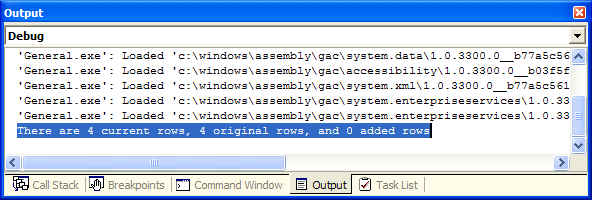
sb.AppendFormat( "There are {0} current rows, {1} original rows, and {2} added rows",
aCurrentRows.Length, aOriginalRows.Length, aAddedRows.Length );
Trace.WriteLine( sb.ToString() );
}
When working with DataViews, you can access filtered/sorted rows by getting them from the DataView instead of directly from the table they are in. You can also insert/add/delete rows using a DataView, subject to some restrictions:
Set the View's Sort property to the column or columns you want to search then use either Find or FindRows:
dvMyView.Sort = "CustomerID";
int nCustomerIndex = dvMyView.Find( txtCustomerID.Text
); // txtCustomerID is a text box
containing a customer ID value
To read rows from a data view you can either:
string strCustomerName = dvMyView[3]["CustomerID"].ToString(); // Access the CustomerID value in the 3rd row
foreach( DataRowView drv in dvMyView )
{
strCustomerID = drv["CustomerID"];
strCustomerName = drv["CustomerName"];
...
}
Create a new row in the data view by calling AddNew and then update the values in the new row just as you would update the values of any existing row in a data view. Note that the new row is not actually added to the underlying table until EndEdit of DataRowView method is called. Likewise, you can discard your changes by calling CancelEdit. If EndEdit was called, the changes will be added to the underlying table as mentioned previously, but you may still have to call AcceptChanges or RejectChanges to commit/discard changes to the underlying DataTable. Note that if you call AddNew while a pending row exists, EndEdit will be implicitly called on the pending row.
DataRowView drvNew = dvMyDataView.Ad
drvNew["CustomerID"] = 123;
drvNew["CustomerName"] = "John Joe";
...
drvNew.EndEdit();
You can update a row in a data view by accessing the ith row and then updating the appropriate column value. Again, you can confirm changes to the underlying DataTable using DataRowView.EndEdit (or CancelEdit to discard changes to the underlying DataTable):
dvMyView[2]["CustomerID"] = 1234;
dvMyView[2].EndEdit();
Call the data view's Delete method passing the index of the row to delete:
int nIndexOfRowToDelete = 20;
dvMyView.Delete( nIndexOfRowToDelete );
A DataViewManager is an object used to manage a collection of DataView objects each of which is associated with a specific DataTable in a DataSet that has multiple DataTables. a DataViewManager is particularly useful when you have to work with a number of related tables and want to sort or filter child records from a master table.
For example, assume a DataSet contains a Customers DataTable and an Orders DataTable, and a DataRelation object that links the two data tables together. You can use individual DataView objects to sort Customers by field X and Orders by field Y. However, when you use individual DataView objects in this manner and then use the relation's object GetChildRecords method to get Order records - the records will not be sorted. In contrast, when using a DataViewManager, child rows will be sorted.
To create and configure a data view manager:
// Get a populated data set from
somewhere
DataSet ds = GetData();
// Now create and configure the data view manager
DataViewManager dvm = new DataViewManager();
dvm.DataSet = ds;
dvm.DataViewSettings["Customers"].Sort = "CompanyName";
dvm.DataViewSettings["Orders"].Sort = "OrderID";
// Bind the data view manager to some control
datagrid1.DataSource = dvm;
datagrid1.DataMember = "Orders";
DataView has only one event of its own called ListChanged (DataView of course also inherits the Disposed event inherited from MarhsalByValueComponent). The ListChanged event can be used to determine if:
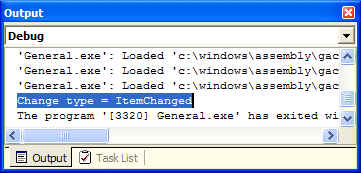
The following example illustrates how to handle the DataView.ListChanged event:
private void btnDataViewEvents_Click(object sender, System.EventArgs e)
{
// Get a data set that contains two related tables
DataSet ds = GetDataSet("select EmployeeID, LastName, FirstName, Title from Employees");
DataView dv = ds.Tables[0].DefaultView;
// Now set up an event handler for DataView.ListChanged event
dv.ListChanged += new System.ComponentModel.ListChangedEventHandler( OnListChanged );
/* Updating a row will fire a
ListChanged event */
dv.AllowEdit = true;
int nRowIndex = 1;
dv[nRowIndex]["FirstName"] = "Yazan";
}
private void OnListChanged( object oSender, System.ComponentModel.ListChangedEventArgs e )
{
Trace.WriteLine( "Change type = " +
e.ListChangedType.ToString());
// Other stuff
...
}
Output:
If a relationship exists between tables in a DataSet, you can create a DataView object containing rows from the related child table using DataRowView.CreateChildView method. The following example shows how:
/* This example shows how to navigate relations using DataViews. To better understand this example,assume there will be two grids, one to display Employee data and the other grid
to display EmployeeTerritories data. When a user selects a row in the Employee grid,
the corresponding EmployeeTerritories rows should be displayed in the second grid
(i.e., parent-child relations), but using DataViews */
private void btnDataViewRelations_Click(object sender, System.EventArgs e)
{
// Get a data set that contains two related tables
DataSet ds = GetDataSet("select * from Employees select * from EmployeeTerritories");
// Explicitly establish the realtionship between these two tables.
DataRelation dr = ds.Relations.Add( "EmpToEmpTerr",
ds.Tables[0].Columns["EmployeeID"],
ds.Tables[1].Columns["EmployeeID"] );
// Create a DataView for Employees Table
DataView dvEmp = new DataView( ds.Tables[0], "", "EmployeeID", DataViewRowState.CurrentRows );
// Create a DataView for navigating relationship between Employees and EmployeeTerritories.
// Assume the relationship is created for the nth selected row in dvEmp
int nSelectedIndex = 1;
DataView dvEmpTerr = dvEmp[nSelectedIndex].CreateChildView("EmpToEmpTerr");
// You can now iterate or display dvEmpTerr in a grid
...
}